Radiant Optimizer game profiles
Find a game in the Game Profiles menu, then open its presets or configuration. Select the game in your installed app to see the settings available to you.
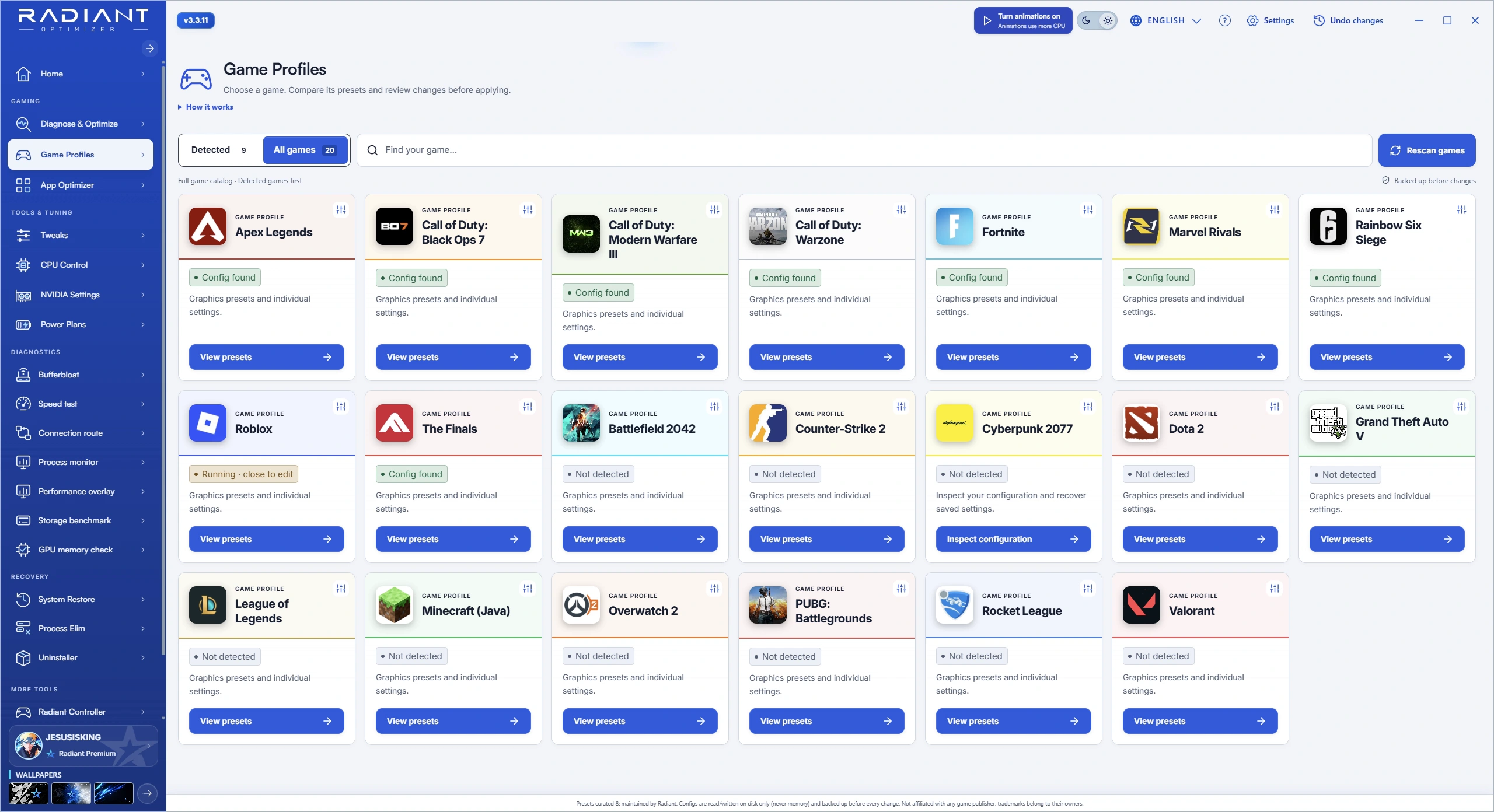
Find your game
20 of 20 menu entries
| Game | Open in the app |
|---|---|
| Apex Legends | View presets |
| Call of Duty: Black Ops 7 | View presets |
| Call of Duty: Modern Warfare III | View presets |
| Call of Duty: Warzone | View presets |
| Fortnite | View presets |
| Marvel Rivals | View presets |
| Rainbow Six Siege | View presets |
| Roblox | View presets |
| The Finals | View presets |
| Battlefield 2042 | View presets |
| Counter-Strike 2 | View presets |
| Cyberpunk 2077 | Inspect configuration |
| Dota 2 | View presets |
| Grand Theft Auto V | View presets |
| League of Legends | View presets |
| Minecraft (Java) | View presets |
| Overwatch 2 | View presets |
| PUBG: Battlegrounds | View presets |
| Rocket League | View presets |
| Valorant | View presets |
Detected and all games
Use Detected to focus on games found on your PC. Switch to All games to browse the menu. If an installed game is missing, use Rescan games before changing a configuration.
Close a running game before editing its configuration. View presets opens graphics presets and individual settings; Inspect configuration focuses on reviewing a configuration and saved settings.
Compare one change at a time
Keep your original configuration and run the same scene before and after a change. Record FPS, 1% lows and frame time with the comparison tool.
For controls outside a game profile, use the feature tour. If you need a capture or stability test instead of more settings, choose a tool by task.
Looking for a download? Start with Windows release details and check free and paid access before buying for a particular preset.