Radiant Optimizer Features: A Tour of the Windows UI
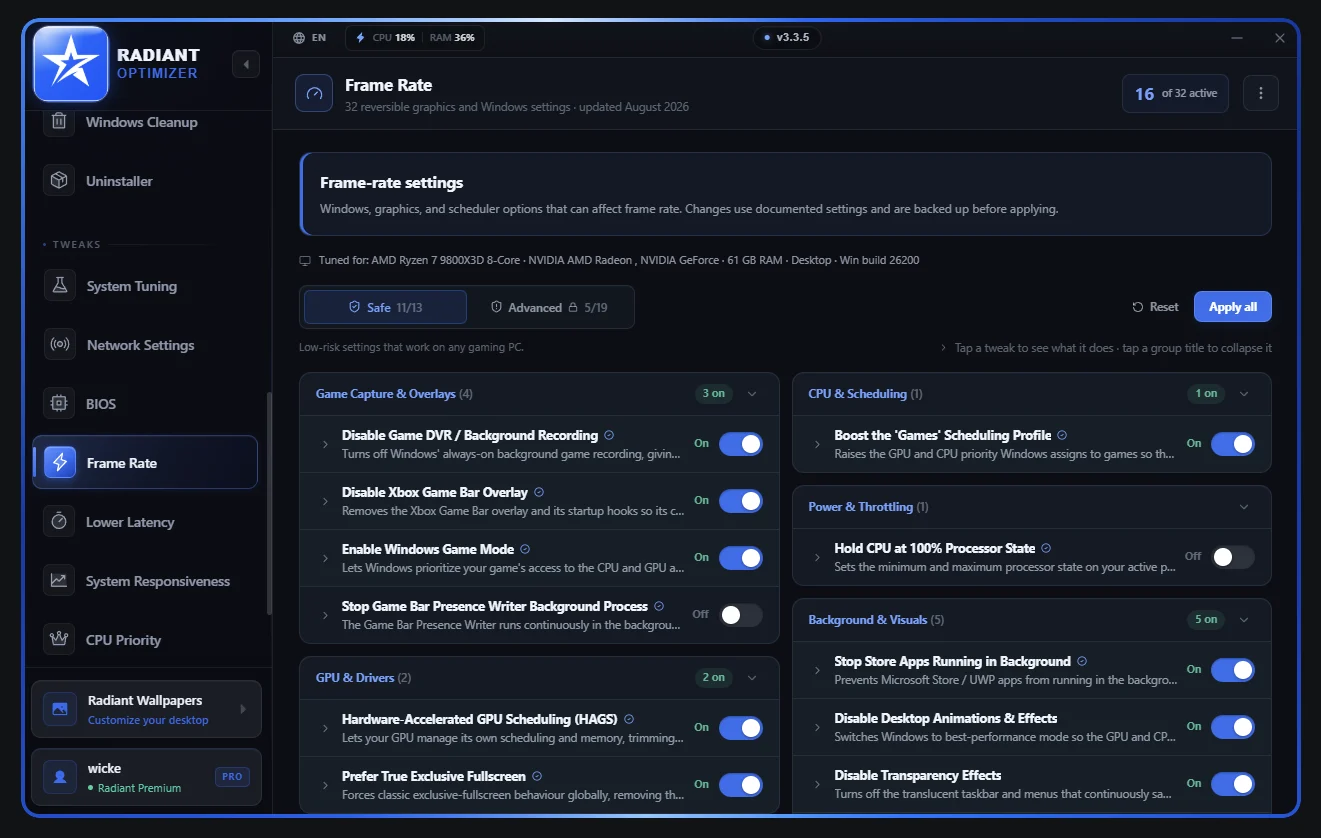
Radiant Optimizer groups Windows tuning into areas such as Frame Rate, Lower Latency, Network Settings, System Responsiveness and CPU Priority. The interface pictures below show v3.3.5; they explain where tasks are grouped, not which settings your PC should use.
Frame rate versus latency
Frame Rate collects graphics, Windows and scheduler-related controls. The displayed page groups settings for capture and overlays, GPU and drivers, CPU scheduling, power and background visuals. A toggle shown as on belongs to the pictured setup; it is not a recommended configuration for your PC.
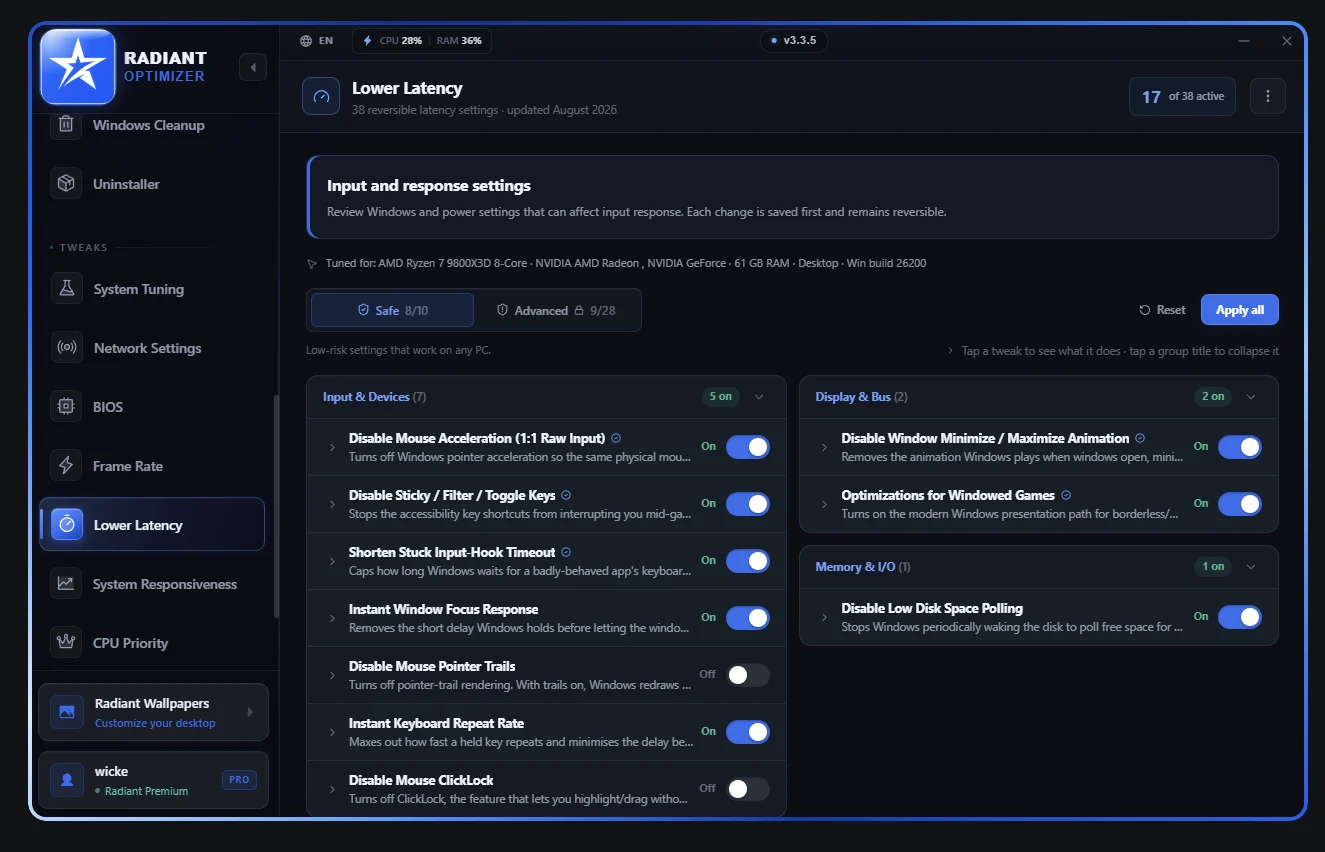
Higher average FPS and lower input delay describe different outcomes. A game can gain frames without improving the part of input delay you care about. The comparison tool handles manually entered FPS, 1% lows and frame time. It does not measure input latency or replace a capture device.
Network settings
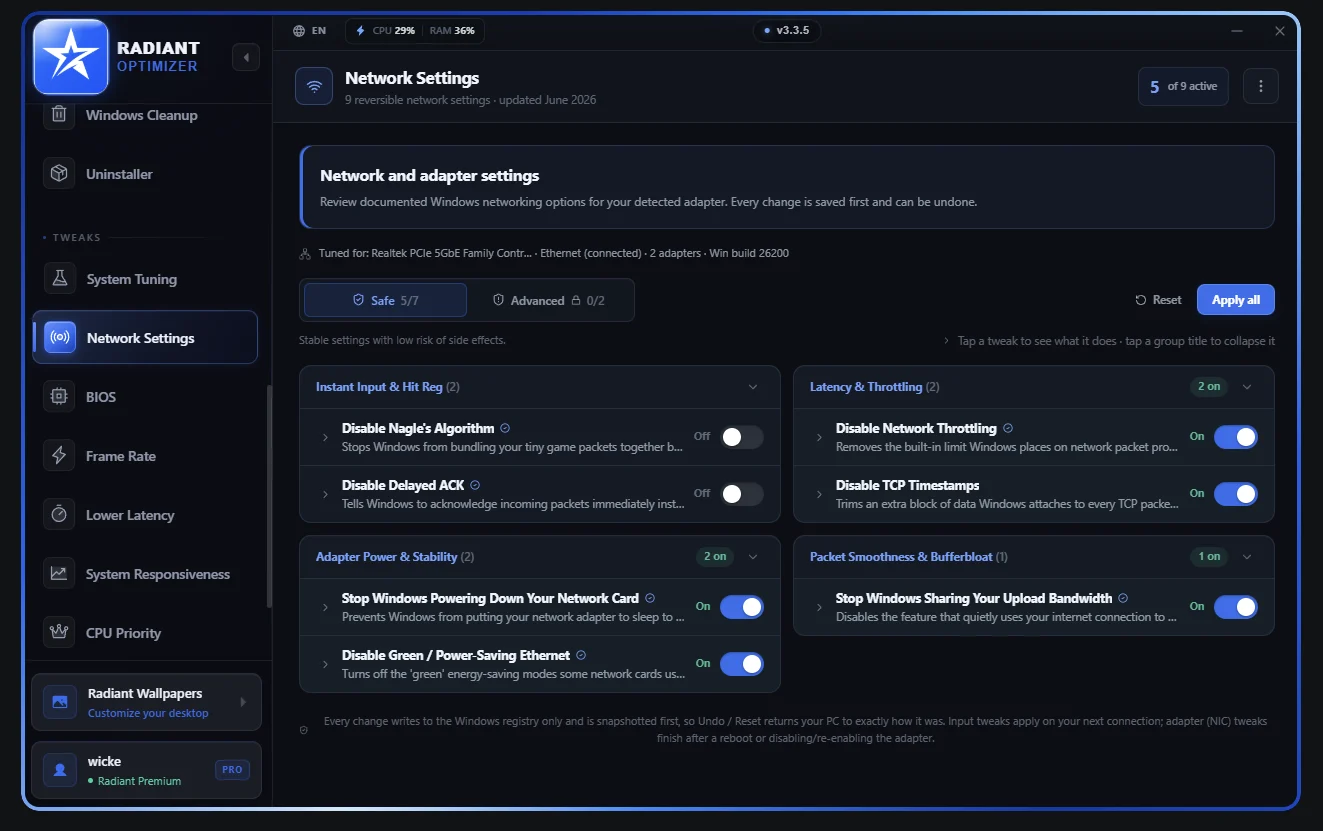
Network tuning is distinct from graphics performance. Ping, packet loss and bufferbloat also depend on your connection, router, remote server and competing traffic. Radiant Optimizer cannot change server-side hit registration. A local toggle cannot establish that a remote server will process hits differently.
Keep the server and connection conditions consistent when comparing network behavior. Do not use a single faster FPS run as evidence of lower ping.
System responsiveness and CPU priority
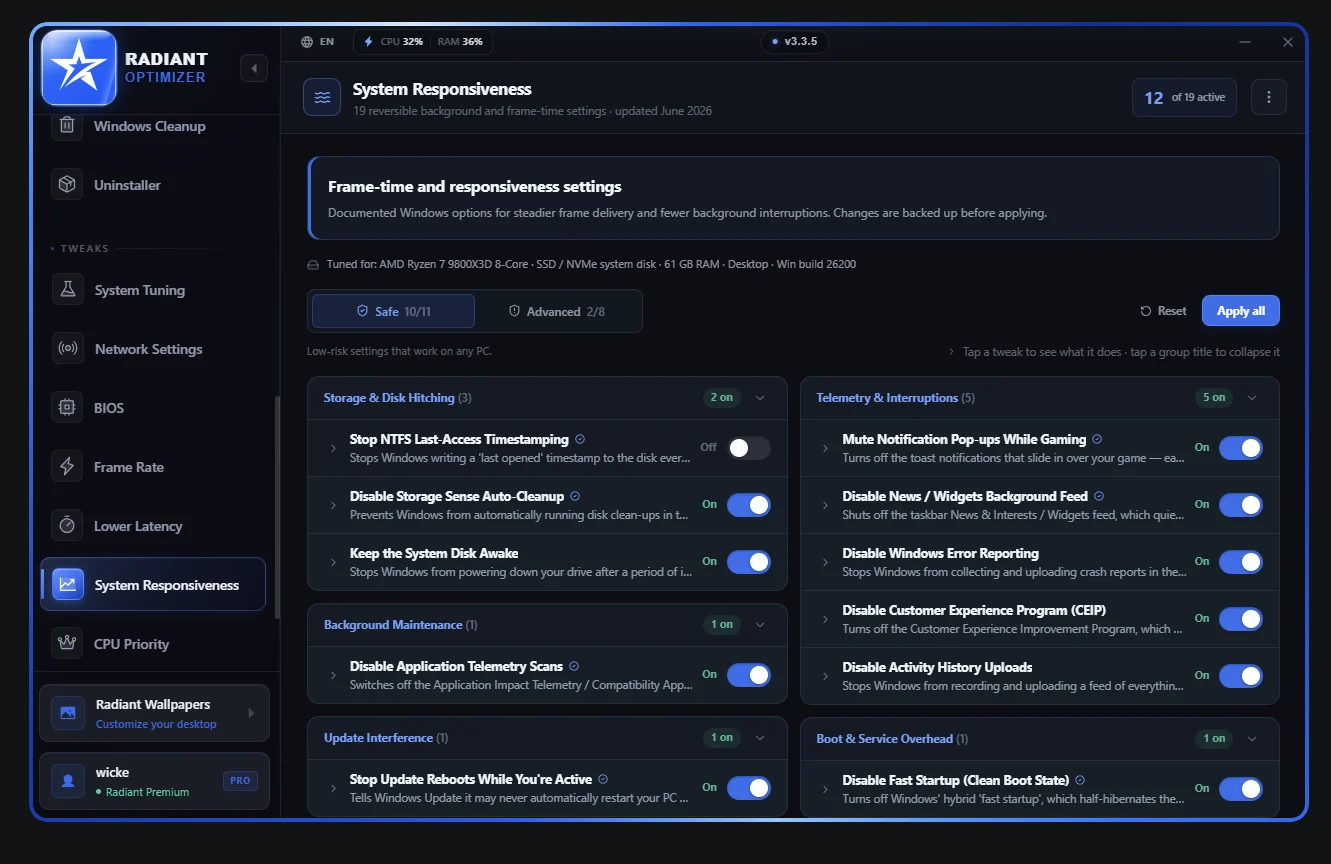
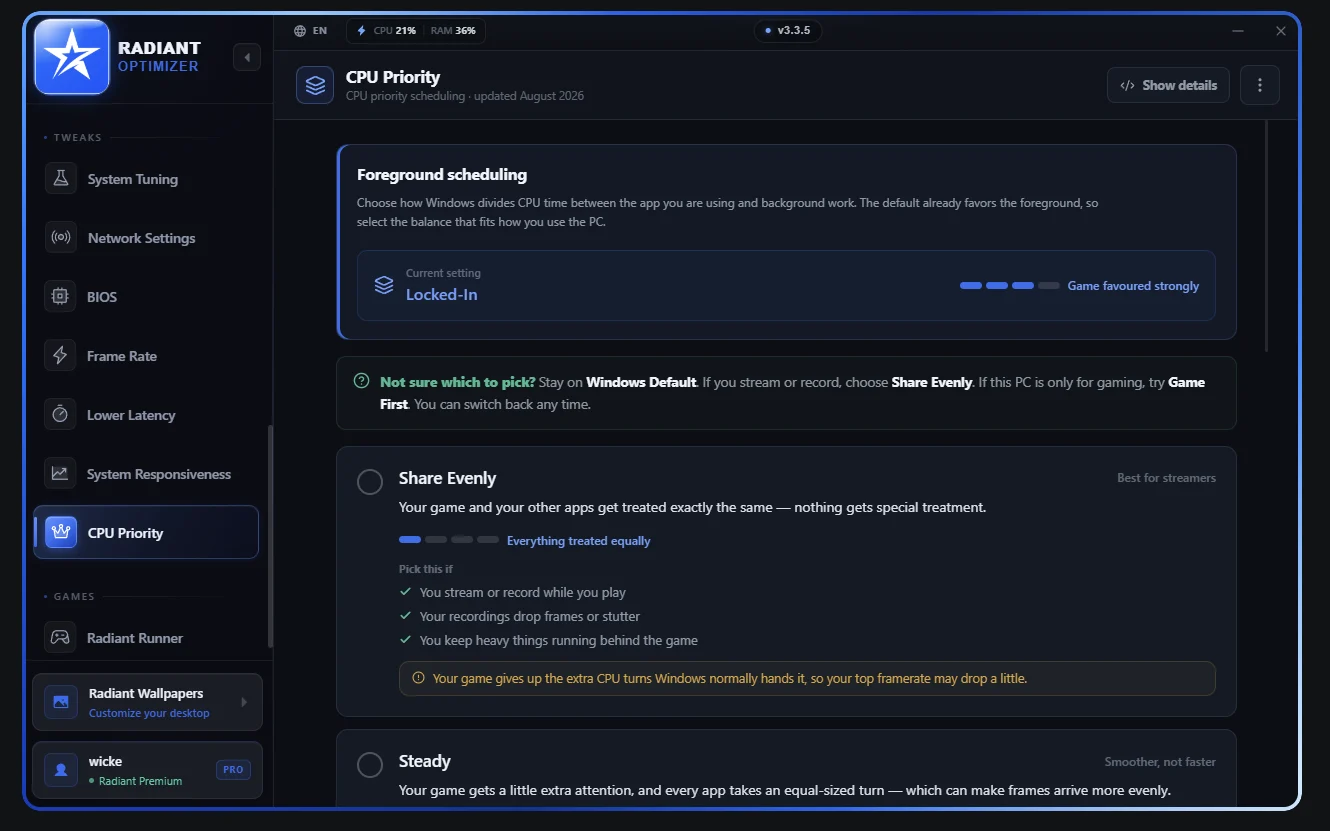
System responsiveness describes how the PC reacts to work, while CPU priority concerns how processing time is scheduled. Neither category is a universal best-settings list. A setting that helps a particular workload can affect another task, background service or game differently.
Dashboard and restore entry
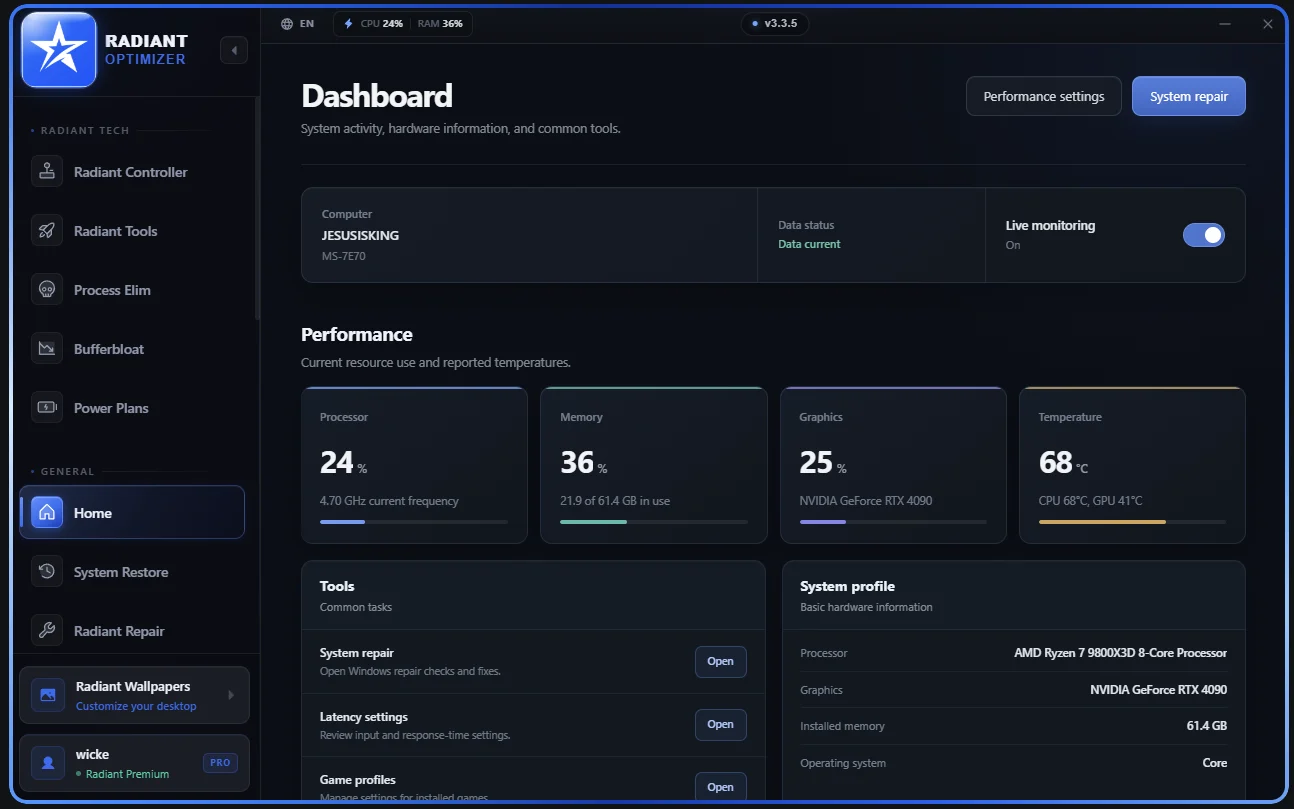
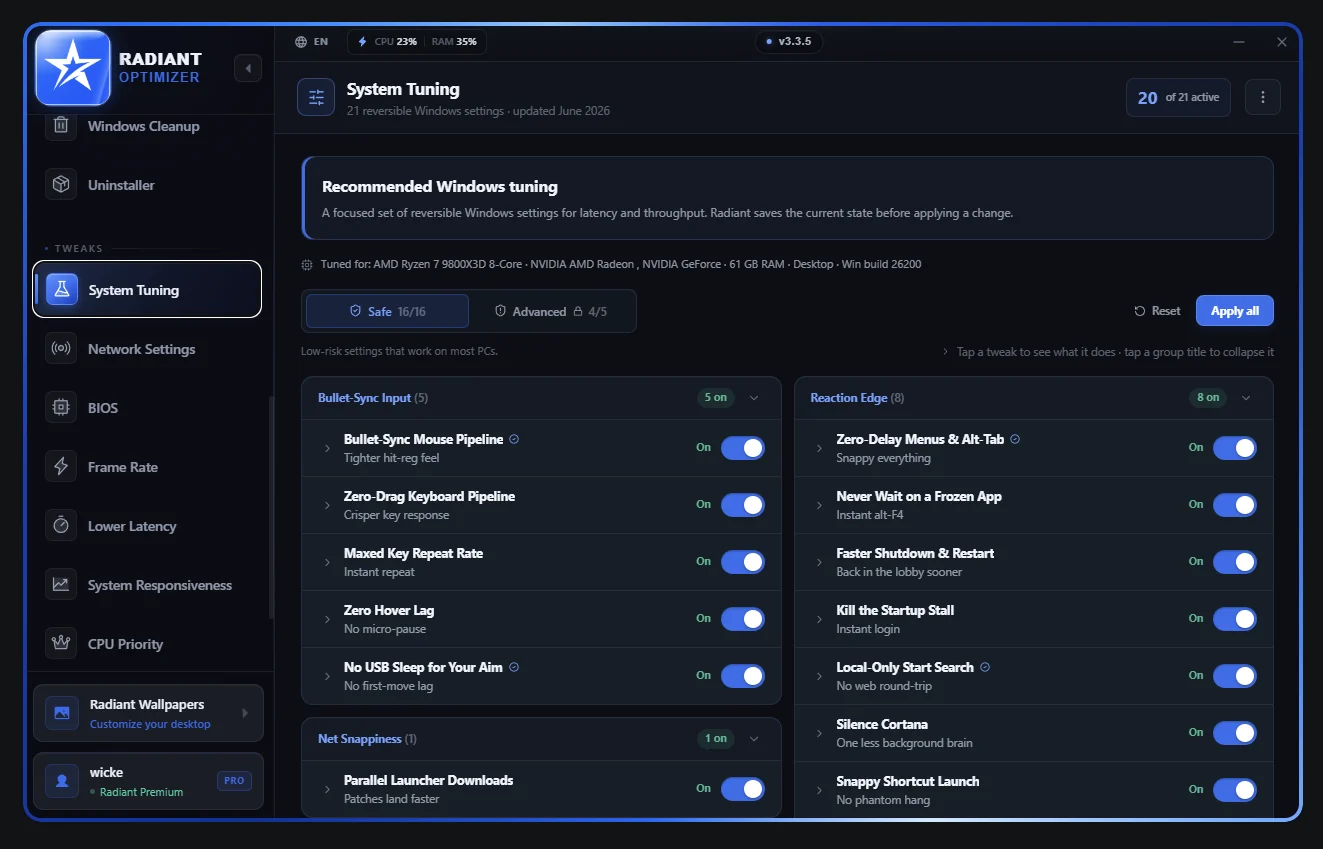
The dashboard sidebar includes a System Restore entry. The publisher advertises reversible optimizations and restore points before changes. Do not treat the presence of that menu as a substitute for your own backup or as a guarantee that every failure can be undone.
The product advertises 400+ optimizations, 16 hardware diagnostics and 5 power plans. Game-profile counts appear as 20 in the main offer and 18 on the Warzone page; check the profile you need in the app. For exact edition access, use free versus paid. For activation or a setting you cannot recover from, use license and support.